The Complete Developer's Guide to SVG in 2026
Most developers know that Scalable Vector Graphics exist. Fewer treat them as the default format they should be. The habit of reaching for a PNG export dies hard, and that habit quietly costs you: larger files, blurry icons on high-density displays, inaccessible graphics, and markup that cannot be styled or animated. SVG solves all of those problems at once. In 2026, the surrounding tooling, browser support, AI-assisted generation and optimization pipelines, has never been stronger. This guide covers the practical side: how the format works under the hood, which embed method to use for which job, how to cut file size without breaking anything, and how to animate without fighting the browser. It also covers how AI coding assistants have changed the economics of this work, particularly for solo developers who need to maintain a full icon library without a dedicated design team.
Why SVG is the right format for most UI graphics
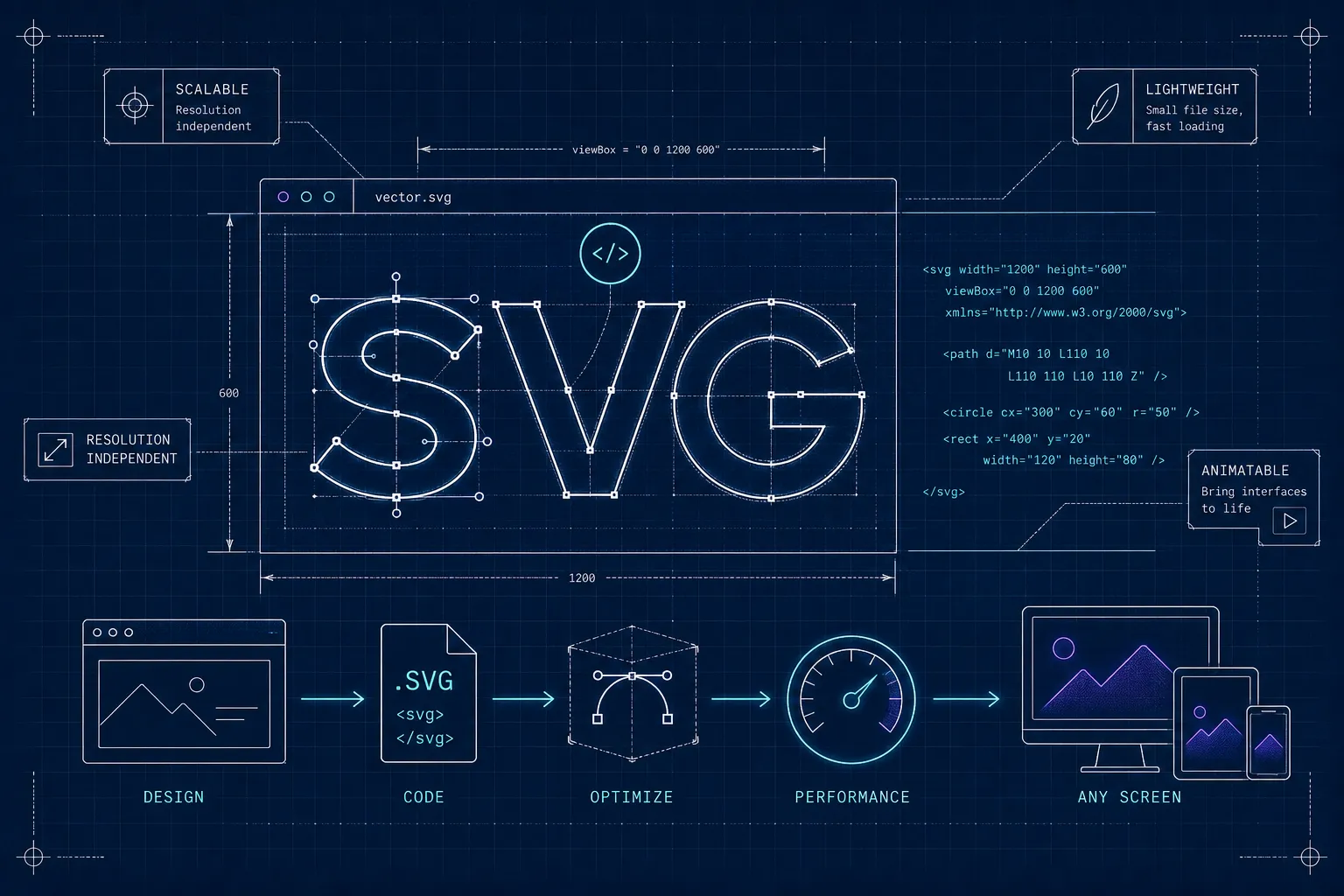
SVG is XML-based, which means the file is plain text describing shapes, paths, and coordinates rather than a grid of colored pixels. That distinction matters for three concrete reasons: the file scales to any resolution without degradation, its contents can be indexed by search engines, and its elements can be targeted by CSS and JavaScript just like HTML elements.
What the format actually looks like under the hood
A minimal vector file looks like this: <svg viewBox="0 0 24 24"><path d="M12 5v14M5 12h14"/></svg>. That path element describes a plus sign using human-readable coordinates. A PNG of the same icon stores thousands of individual pixel values instead, and if you scale it above its native dimensions, the browser interpolates those pixels and produces a blurry result. A vector path has no native dimensions to exceed, so it renders at exactly the right sharpness whether it appears at 16px or 1600px.
Compared to JPEG, the gap is even wider for UI work. JPEG applies lossy compression optimized for photographic gradients, strips transparency entirely, and produces artifacts around sharp geometric edges. Neither JPEG nor PNG gives you DOM access to individual shapes. The vector format does.
When this vector format is clearly the right call
The practical rule is straightforward: Scalable Vector Graphics win for logos, icons, UI illustrations, diagrams, and any graphic that appears at multiple sizes or on high-density retina displays. Raster formats win for photographs and complex imagery with organic color variation. If a graphic has sharp edges, flat colors, or geometric shapes, an SVG file will almost always produce a smaller and sharper result than a PNG at equivalent visual quality. A typical icon optimized in this format sits between 300 bytes and 2 KB. The same icon as a 2x PNG for high-density displays is often 10 to 40 KB.
Inline SVG vs. external files: choosing your embed method
The embed method you choose changes what you can do with the graphic after it lands in the browser. Using the wrong method for the job either wastes performance or locks you out of CSS and JavaScript control.
What inline embedding actually unlocks
When you paste SVG markup directly into your HTML, the browser treats each shape element as part of the DOM. You can target individual paths with CSS selectors, animate them with JavaScript, and apply ARIA attributes for accessibility. For interactive UI components, this is the only embed method that gives you full control over color, opacity, transitions, and state changes. The trade-off is that inline SVG increases HTML document size and cannot be cached as a standalone asset, meaning every page that includes the icon re-downloads those bytes with the HTML response.
External files and the caching advantage
An SVG referenced via an <img> tag or a CSS background-image behaves like any other image asset. The browser fetches it once and caches it across pages, which makes it ideal for static graphics like a site logo or a decorative illustration used on multiple routes. The internal elements are not part of the DOM, so styling and scripting individual shapes directly is not possible. For graphics that do not need interactivity and that repeat across many pages, an external file with long-lived cache headers is the more efficient choice by a meaningful margin.
Why icon fonts are the wrong default in 2026
Icon fonts were a practical workaround for a pre-SVG era in web development. They carry real accessibility penalties: screen readers can misinterpret font glyphs, and rendering behavior varies across operating systems because fonts are hinted differently per platform. Multi-color icons are not possible without layering hacks. New projects should default to SVG sprites or component-level inline embedding instead. The open-source vector icon ecosystem in 2026 is mature enough that there is no scenario where reaching for an icon font makes sense for a project starting today.
File optimization for real web performance
A raw export from Figma, Illustrator, or Inkscape carries significant weight that has nothing to do with rendering. Editor metadata, comments, hardcoded colors, redundant attributes, and excessive decimal precision in path coordinates can double or triple the file size of a simple icon. A raw export rarely ships as-is and shouldn't.
What SVGO removes and why it matters
SVGO is the standard tool for this step. Its defaults handle the highest-impact transformations: stripping editor metadata, removing empty groups, collapsing redundant attributes, and rounding path coordinates to two or three decimal places. Most icons lose 30 to 60 percent of their file size with no visible change to the rendered output. The three plugin categories with the most impact are metadata removal, path data simplification, and whitespace minification. If you prefer not to work from a CLI, SVGOMG is a browser-based interface built on top of SVGO that makes the same optimizations accessible without any local setup.
Preserving what optimization should never touch
Not everything is safe to strip. The viewBox attribute must be preserved if the file needs to scale responsively with CSS: removing it fixes the graphic at a specific pixel size and breaks any responsive layout that expects it to flex. Accessibility elements like <title> and <desc> must stay for any graphic used as meaningful content rather than pure decoration. Aggressive path simplification from the convertPathData plugin can introduce visible artifacts on detailed curves in complex illustrations.
A useful audit step: compare the optimized output against the original visually at 1x and 2x zoom before committing the file. For icon-weight files, the safe defaults are almost always fine. For multi-color illustrations with gradients or masks, inspect the output carefully and override the cleanupIds and mergePaths plugins specifically, as both can break internal references and alter how overlapping shapes render.
Animation basics every developer should know
SVG animation is one of the format's most underused capabilities, and the reason it stays underused is that developers assume it requires a separate library or a specialized skill set. For the majority of UI animation needs, standard CSS is sufficient.
Using CSS to animate SVG elements
Because inline SVG elements are part of the DOM, the same CSS properties you use on HTML elements apply directly to paths, circles, and groups. The transition and @keyframes rules work as expected. A common pattern for icon animation is the stroke-dashoffset technique: set stroke-dasharray to the path length and animate stroke-dashoffset from the full length to zero, which produces a "drawing on" effect. Opacity fades and transform-based entrance animations are equally clean and require no JavaScript at all.
CSS vs. SMIL vs. JavaScript: which to use
SMIL, the SVG-native animation specification, has inconsistent browser support and should be avoided for any new work. In practice, CSS is not just more compatible, it is also simpler to maintain and integrates cleanly with existing component styles, which is why it handles the vast majority of common UI animation needs. JavaScript via the Web Animations API or a library like GSAP is the right choice for complex sequenced animations, scroll-triggered effects, or interactions that require programmatic control over timing and state.
The practical rule for cross-browser performance in 2026: animate transform and opacity on SVG elements whenever possible, because browsers can handle these on the compositor thread without triggering layout or paint. Animating path data directly, stroke geometry, or fill colors forces the browser to recalculate geometry on every frame and produces noticeably worse results on slower devices, particularly in Safari.
Using AI to generate, refactor, and automate SVG work
AI coding assistants have changed the economics of this work for solo developers. Tasks that used to require a design tool, a manual export, an optimization pass, and hand-edited accessibility markup can now be delegated to a model in a fraction of the time.
Generating SVG code with an AI coding assistant
Modern models can produce valid, structured SVG markup on request: geometric icons, simple UI components, and illustrations with correct viewBox dimensions, accessible elements, currentColor for CSS-controlled fill, and clean path data. The output is not always production-ready on the first pass, but it is a far faster starting point than drawing paths by hand or hunting through icon libraries for something that almost fits. Prompt specificity matters: define the size, color scheme, style (outlined vs. filled), and intended use case, and the output quality improves significantly.
Refactoring messy exports automatically
AI assistants are equally useful for cleanup work. Converting hardcoded hex fill values to currentColor, removing editor junk that SVGO misses, restructuring deeply nested groups, and adding missing ARIA attributes to existing icon sets are all tasks a model handles well given a specific prompt. For a developer inheriting a codebase with a dozen inconsistent icon exports, a well-structured prompt can refactor an entire component file in seconds.
Automating the repetitive middle of the pipeline
For larger-scale work the leverage is not in the drawing, it is in the mechanical steps either side of it: producing a first draft, running an optimization pass, and converting supplied raster assets into paths. That last step is the one most likely to be done by hand repeatedly. PixelTools covers it directly, turning a PNG or JPG logo into sanitized vector paths in the browser, so an inherited folder of raster assets becomes a usable icon set without opening a design tool or installing anything. For a solo developer maintaining a product, taking an afternoon of repetitive file work out of the loop is where the return shows up.
The practical takeaways
Scalable Vector Graphics is the correct format for scalable UI graphics. SVG browser support has been universal since IE9, meaning most projects have had no technical reason to avoid it for well over a decade. The embed decision is simple: inline SVG for interactive icons that need CSS or JavaScript control, external files with caching for static graphics used across multiple pages. Every export should pass through an optimizer like SVGO before it ships, with care taken to preserve viewBox, accessibility text, and internal ID references for complex illustrations.
CSS handles most animation needs cleanly when you stay on compositor-friendly properties. AI coding assistants handle first-draft generation and refactoring work faster than any manual workflow.
Fluency with this vector graphics format is one of those skills that improves every product you ship, quietly and measurably. You get faster load times, sharper graphics on every screen density, and accessible icons by default. You also get markup you can animate without external dependencies. The tooling in 2026 makes getting there faster than ever.
Read next
Every PixelTools converter
Image
- Image → SVGAny raster format to vectors
- PNG → SVGTrace PNG into editable paths
- JPG → SVGTrace JPG into editable paths
- WebP → SVGTrace WebP into editable paths
- AVIF → SVGTrace AVIF into editable paths
- GIF → SVGTrace GIF into editable paths
- TIFF → SVGTrace TIFF into editable paths
- SVG → PNGRender vectors at any pixel size
- Pixel rulerMeasure image distances and areas